How to Edit a PDF
“Edit a PDF” means three different jobs: fixing text, adding notes, and filling forms. This guide covers fixing text — the one people mean most often. I tested it on a one-page letter with a deliberate typo (“reciept”): the script below found it, replaced it with “receipt”, and text extraction afterwards confirms the fix. Free tools can do this; what they can't do is reflow a paragraph like Word.
At a glance
- For a typo or a short text fix, a redaction + insert script works and is fully verifiable.
- LibreOffice Draw edits text by clicking on it — good for one or two fixes, clumsy for long rewrites.
- Text does not reflow: replacing a word with a much longer one will overflow or overlap, not push the rest down.
- Scanned or image-only PDFs have no text to edit — they need OCR first.
- Browser editors upload your file; for sensitive documents, prefer an offline method.
Steps
- Install Python 3 and PyMuPDF:
pip install pymupdf. - Save this script as
fix_typo.py(full script in the section below) and put it next to your PDF. - Run it:
python fix_typo.py letter.pdf reciept receipt. It prints the match it found, redacts it, and writesletter-fixed.pdf. - Compare the renders. Before: the third line reads “reciept”. After: the same line reads “receipt”:
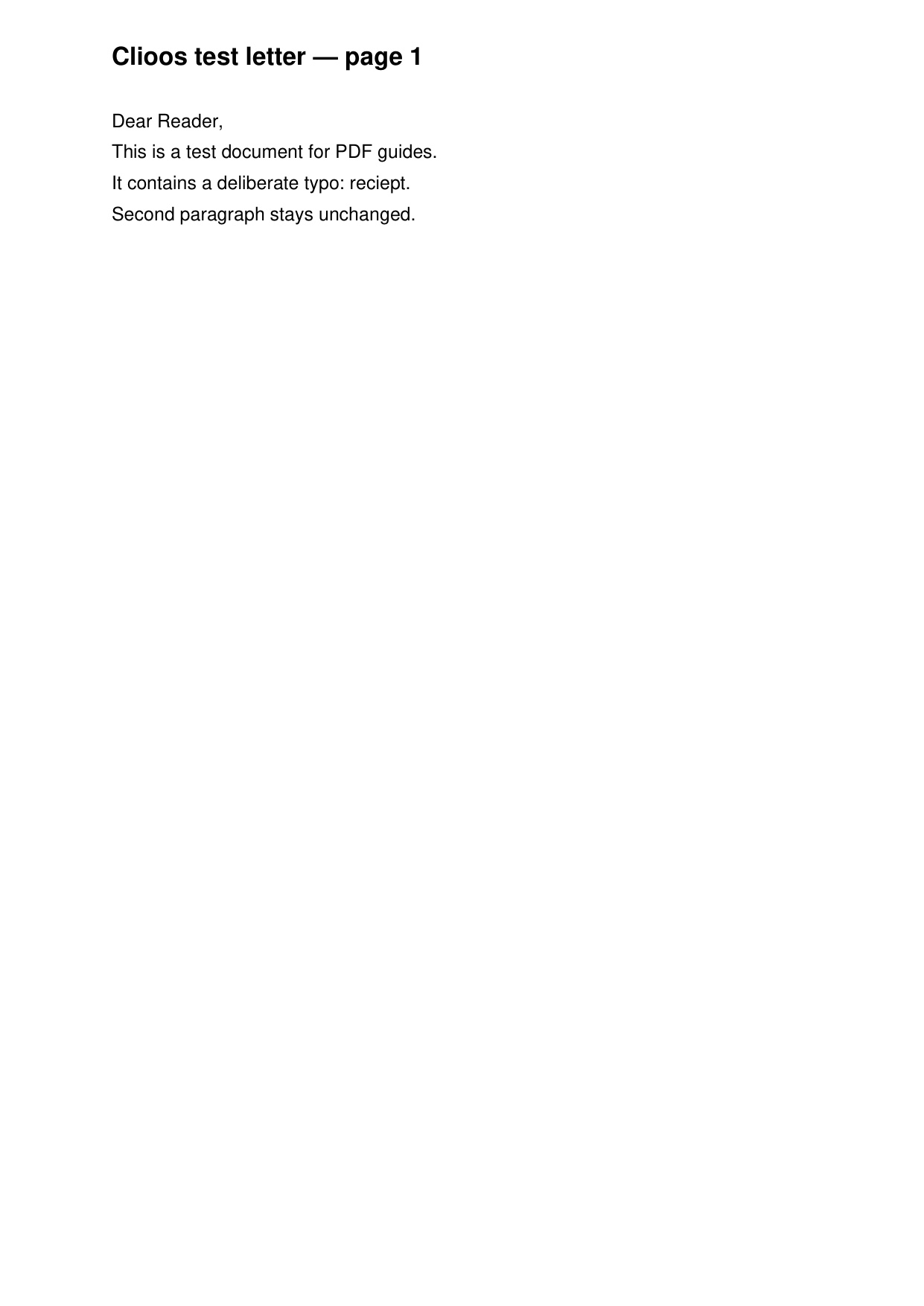
Before: the test letter rendered at 150 DPI — the third line reads “reciept”. 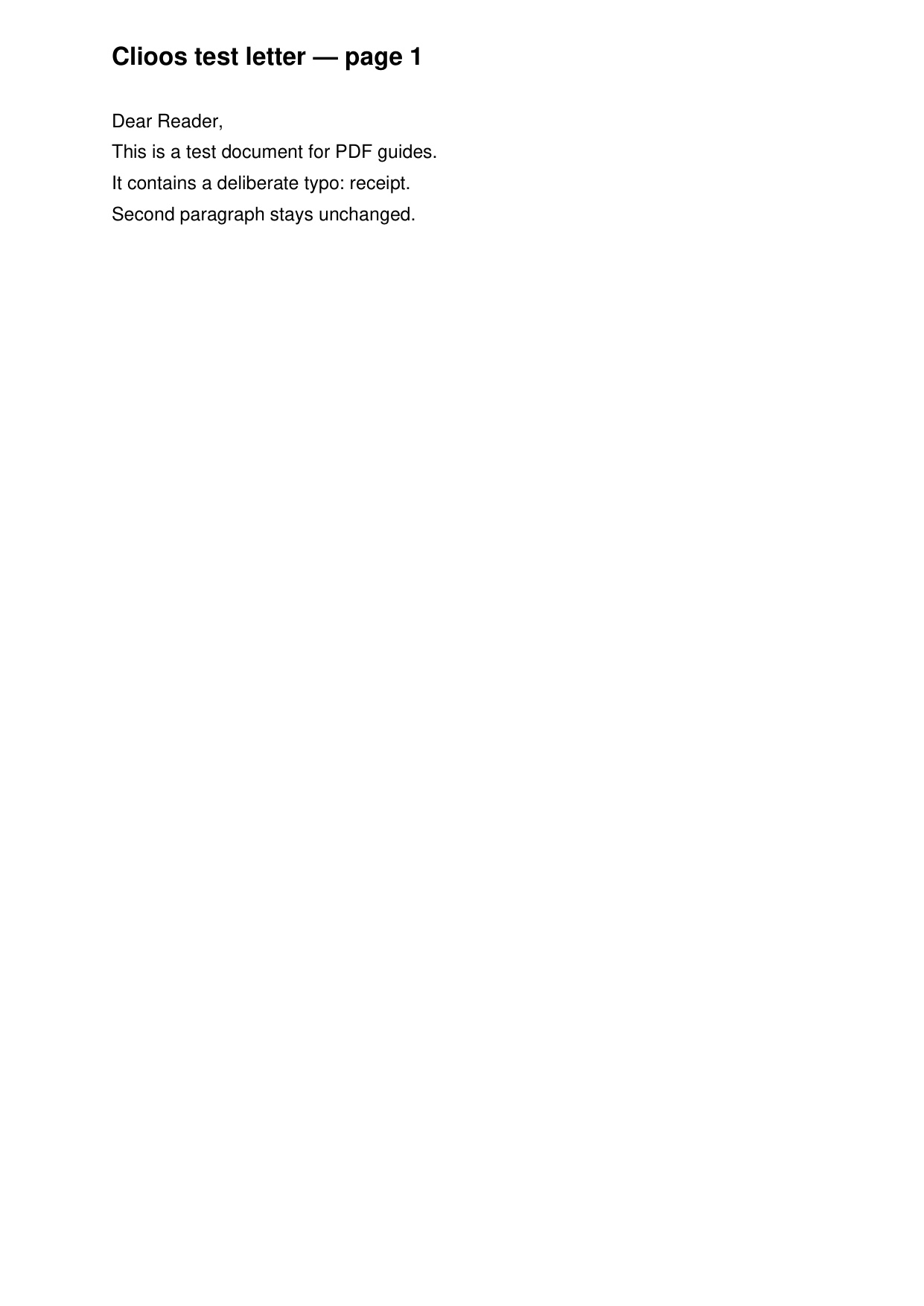
After: the same page after the script ran — the third line reads “receipt”. Renders of the real test files, 2 November 2026. - Verify by extraction, not by eye: before, the extracted text contained “reciept”; after, it contains “receipt” and no “reciept”. File size went from 1,674 to 2,704 bytes.
The script (copy and run)
This is the exact script used for the test. It finds the wrong word's position from the text layer, redacts just that word, and inserts the correction at the same spot.
import sys
import fitz  # PyMuPDF

pdf_path, wrong, right = sys.argv[1], sys.argv[2], sys.argv[3]
doc = fitz.open(pdf_path)
page = doc[0]
# Collect every character with its size, to find the wrong word's origin.
chars = []
for b in page.get_text("rawdict")["blocks"]:
    for l in b.get("lines", []):
        for s in l["spans"]:
            for ch in s["chars"]:
                chars.append((ch, s["size"]))
text = "".join(c["c"] for c, _ in chars)
i = text.index(wrong)
origin, size = chars[i][0]["origin"], chars[i][1]
hits = page.search_for(wrong)
assert hits, "word not found"
page.add_redact_annot(hits[0], fill=(1, 1, 1))
page.apply_redactions()
page.insert_text(origin, right, fontsize=size, fontname="helv")
doc.save(pdf_path[:-4] + "-fixed.pdf")
print("fixed:", pdf_path[:-4] + "-fixed.pdf")
Two honest caveats about that script: it fixes the first occurrence only (loop over hits for all of them), and it inserts in Helvetica — if your document uses another font, the corrected word will be close but not identical. For a one-word typo, that is the right trade-off.
Worked example (tested 2 November 2026)
Test file: a one-page letter (“Clioos test letter”) whose third line reads “It contains a deliberate typo: reciept.” The script found one match, redacted it, and inserted “receipt” at the word's own origin. Text extraction before the fix contained “reciept”; after the fix it contains “receipt” and no “reciept”, and the rendered page reads “It contains a deliberate typo: receipt.” File size went from 1,674 bytes to 2,704 bytes (the redaction adds an overlay; edited PDFs are usually slightly larger, not smaller).
One visible caveat: the inserted word uses Helvetica, so under close inspection it may not match the original font exactly. For a single typo nobody notices; for a redesigned page, go back to the original source file instead.
Method 2: LibreOffice Draw (click and type)
For one or two fixes and no appetite for scripts: open the PDF in LibreOffice Draw, click the text, type the correction, then File → Export as PDF. Draw treats each block of text as a separate text box, so a paragraph can be split across boxes — edit inside the box that holds your word.
Verification note: I confirmed Draw opens this test PDF and exports it back to PDF (headless round-trip check with LibreOffice 24.2: the file converts as a Draw document and re-exports cleanly). The click-to-edit flow itself is Draw's documented behaviour; if your PDF opens in Writer instead of Draw, you picked the Writer PDF file type — reopen it with the default Draw handling.
Draw's limits: long replacements overflow their box instead of reflowing the paragraph, and fonts may substitute if the original font isn't installed. For a heavy rewrite, convert to Word first (see the Word guide) and rebuild the PDF from there.
What free tools can't do
- Reflow: no free editor repaginates a paragraph like Word. Replacing a word with a much longer one overlaps the next words instead of pushing them down.
- Exact font matching: inserted text uses an available font; if the original font is missing, the match is close, not exact.
- Scanned PDFs: an image-only page has no text to edit. Run OCR first (see the scanned guide), then edit the recognised text.
- Locked PDFs: a password-protected or permission-locked PDF needs the password (and the owner's permission) before any editor can change it.
- Batch edits: a GUI editor edits one file at a time. For the same fix across many files, use the script method in a loop.
Free alternatives, honestly compared
- Sejda / Xodo / Smallpdf (browser editors): click-and-type editing with no install, but your file uploads to their server and free tiers have limits. Fine for ordinary documents; avoid for contracts, IDs or financial files.
- Adobe Acrobat online: the free tier covers viewing and commenting; real text editing is a paid feature.
- Word (heavy rewrites): open the PDF in Word and it converts to .docx — good when half the document changes, but expect layout shifts (see how to convert PDF to Word).
Frequently asked questions
Can I edit a PDF for free?
Yes, for small fixes: LibreOffice Draw or the script above, both free and offline.
Will the edited text look identical?
Close, not identical. The inserted word uses a standard font; if the original used something else, a careful reader can spot the difference. For a single typo nobody notices; for a redesigned page, use the original source file.
Can I edit a scanned PDF?
Not directly — there is no text layer. Run OCR first (see the scanned PDF guide), then edit the recognised text.
Is it safe to use a free online PDF editor?
For non-sensitive files, yes. For contracts, IDs or financial documents, prefer offline tools — uploads are stored on someone else's server, even briefly.
What if the PDF is password-protected?
You need the password (or the owner's permission). Free tools can't legitimately strip document-open passwords.
Related guides: How to convert PDF to Word · How to convert PDF to Excel · How to convert a scanned PDF to Excel · All guides · Tool: PDF Probe