Clioos › Guides › PDF to Excel
How to Convert a Scanned PDF to Excel
A scanned PDF has no text — just a picture of a page — so it needs OCR first. Upload a clean scan, let the converter read it, check the preview, and download the .xlsx.
At a glance
- Scan at 300 dpi, straight, black text on white, good contrast. Phone photos at an angle or with shadows often fail.
- Upload at PDF Probe — first 10 pages free, no account. OCR takes a few seconds to about half a minute per page.
- Check the preview: rows in red are low-confidence reads — verify them against the scan before downloading.
- It works on clean scans of standard US bank statements. Handwriting, faint print and heavily ruled black-grid tables may come back empty.
Steps
- Make a clean scan: 300 dpi, page straight, good light, black text on white. If you only have a photo, retake it straight-on, fill the frame, no shadows or glare.
- If the scan is a JPG/PNG, save it as a PDF first (most phones and scanners do this in one tap; on iPhone, Notes → scan; on Android, Drive → Scan).
- Upload the PDF at PDF Probe (under 10 MB, 20 pages or fewer).
- Wait for OCR — longer than a digital PDF, usually a few seconds to about half a minute per page.
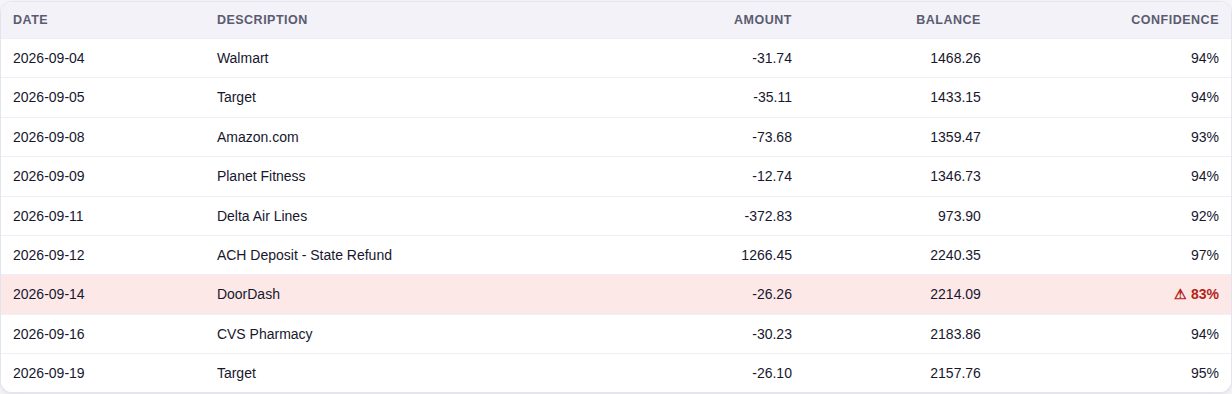
Preview of a scanned Chase statement (synthetic test file, 28 October 2026): 9 rows extracted, one row read at 83% confidence is highlighted red for manual checking. Screenshot of the live tool. - Check the preview table. Red rows are low-confidence reads: compare each one with the scan. Also check the row count matches the statement.
- Download .xlsx. Amounts are numbers, dates are real dates.
Worked example (tested 27 October 2026)
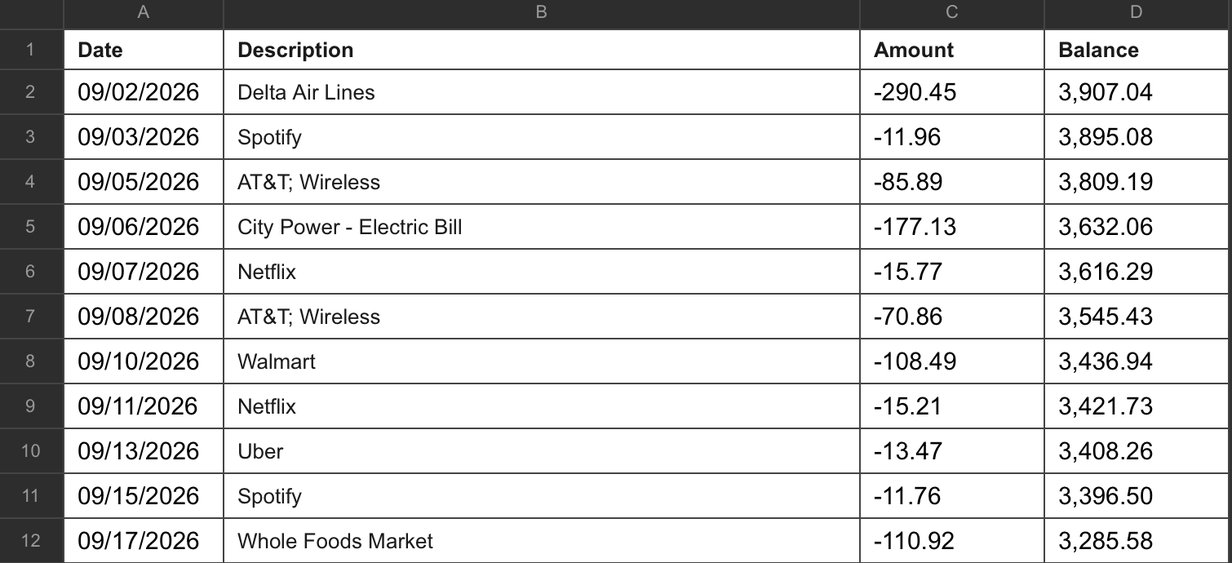
I tested this with an 11-row scanned Chase statement: all 11 transactions extracted with exact amounts, OCR confidence 92–97, balances reconciled. A 5-row scanned statement in the same layout extracted 5 out of 5 (confidence 86–97). Both were clean 300 dpi scans with light grey grid lines and a shaded header row.
| Check | Result |
|---|---|
| 11-row scanned Chase statement | 11 / 11 rows, confidence 92–97 |
| 5-row scanned statement, same layout | 5 / 5 rows, confidence 86–97 |
| Scanned statement, heavy black grid | 0 rows — OCR dropped the table |
What doesn't work (tested)
- Handwriting: OCR reads printed text, not handwriting.
- Skewed or faint scans: a slight tilt is handled, but a photo taken at a sharp angle or with shadows usually fails.
- Heavily ruled black-grid tables: in my test, a scan of a table with thick black grid lines returned 0 rows — the OCR dropped the whole table. The same table with light grey rules converted fine. If your scan returns empty, try the bank's digital PDF download instead — it converts far more reliably.
- Non-statement tables: the converter only recognises statement-style tables (see the main guide).
Frequently asked questions
How long does OCR take?
Usually a few seconds to about half a minute per page. A one-page statement is normally done in under 30 seconds.
What scan settings work best?
300 dpi, black and white or greyscale, page straight, even light, no shadows. A flatbed scan beats a phone photo; if you must use a phone, shoot straight down and fill the frame.
Some rows are red in the preview. What does that mean?
Red rows are low-confidence reads (OCR confidence below 85%). The values are usually right, but verify each red row against the scan before you download — one wrong digit is worse than a missing row.
Can it read a photo of a statement?
Sometimes. A straight, well-lit, high-contrast photo can work, but phone photos at an angle, with glare or shadows, usually fail. A flatbed scan at 300 dpi is the reliable route.
Related guides: How to convert PDF to Excel · How to convert a bank statement PDF to Excel · PDF Probe vs DocuClipper · All guides · Tool: PDF Probe