How to Convert PDF to JPG
A PDF page becomes one JPG file per page — there is no single JPG for a whole document. The free offline way is a short script or one command: on a 2-page A4 test report, 150 DPI gave 1241×1754 JPGs of about 44 KB each, and 300 DPI gave 2481×3508 JPGs of about 146 KB. Pick 150 for sharing, 300 for print.
At a glance
- One PDF page = one JPG file. A 2-page PDF gives you 2 JPGs, named per page.
- JPGs carry no text layer — you can't select or search text inside them afterwards.
- 150 DPI is enough for screens and sharing (1241×1754 for A4); 300 DPI is the print choice (2481×3508).
- The tested offline methods need no upload: Python + PyMuPDF, or poppler's pdftoppm.
- Scanned PDFs convert the same way — the JPG is a picture of the scan, still not searchable text.
Steps
- Install Python 3 and PyMuPDF:
pip install pymupdf. - Save this script as
pdf_to_jpg.pyand put it in the same folder as your PDF. - Run it:
python pdf_to_jpg.py report.pdf 150— one JPG per page, named report-p1.jpg, report-p2.jpg, and so on. - Check the first output. On the test report, page 1 at 150 DPI came out 1241×1754 and 43,656 bytes:
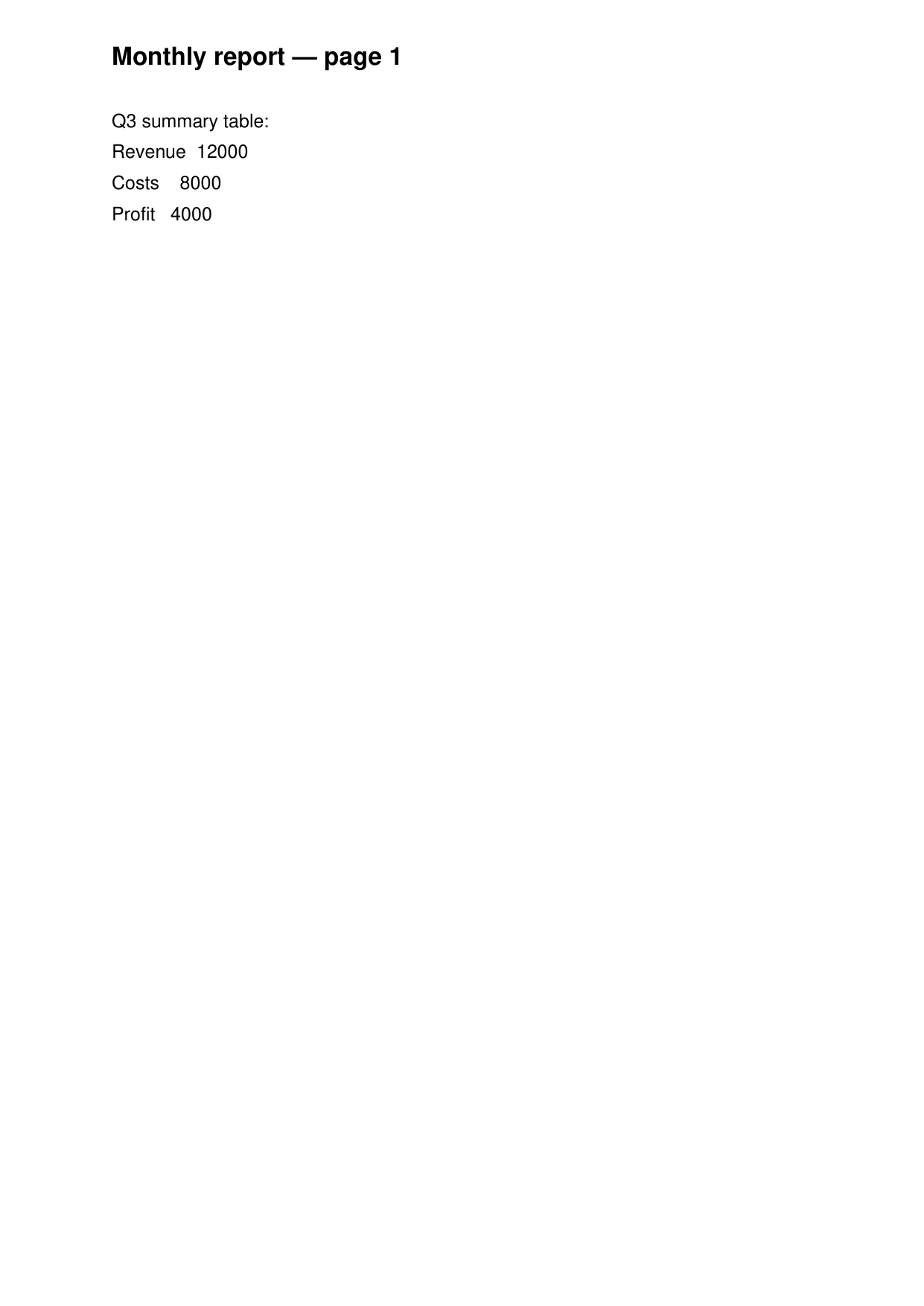
Page 1 of the test report as a 150 DPI JPG (1241×1754, 43,656 bytes). Rendered from the test PDF, 2 November 2026. - For print, re-run at 300 DPI: page 1 becomes 2481×3508 and about 146 KB.
- Alternative without Python:
pdftoppm -jpeg -r 150 report.pdf report(poppler) gives the same 2 JPGs — on the test file, 45,681 and 45,784 bytes, in 1.7 seconds.
The script (copy and run)
This is the exact script used for the test. It takes the PDF path and the DPI as arguments.
import sys
import fitz  # PyMuPDF

pdf_path, dpi = sys.argv[1], int(sys.argv[2])
doc = fitz.open(pdf_path)
for i, page in enumerate(doc):
    pix = page.get_pixmap(dpi=dpi)
    out = f"{pdf_path[:-4]}-p{i+1}.jpg"
    pix.save(out)
    print(out, pix.width, "x", pix.height)
File names come from the PDF name: report.pdf at 150 DPI gives report-p1.jpg and report-p2.jpg.
Worked example (tested 2 November 2026)
Test file: a 2-page A4 report (a short Q3 summary with four lines of figures). Both methods ran on the same file.
| Method | DPI | Page size | File sizes | Time (2 pages) |
|---|---|---|---|---|
| PyMuPDF | 150 | 1241×1754 | 43,656 / 43,921 bytes | 0.21 s |
| PyMuPDF | 300 | 2481×3508 | 146,013 / 146,687 bytes | 0.8 s |
| pdftoppm | 150 | 1241×1754 | 45,681 / 45,784 bytes | 1.73 s |
Sizes depend on page content: a photo-heavy page at the same DPI will be several times larger than this text-only report. The 300 DPI files are roughly 3.3× the 150 DPI ones, which matches the 4× pixel count minus JPG compression.
What it can't do
- No text layer: a JPG is pixels only. If you need selectable or searchable text, keep the PDF or run OCR on the image afterwards.
- No multi-page JPG: JPG holds one image. For a whole document in one file, keep the PDF — or zip the JPGs.
- Small text softens: JPG compression blurs thin lines and small type. For line art, diagrams or screenshots of text, render PNG instead (same script, save as .png).
- Scanned pages stay pictures: converting a scan gives you a picture of the scan. It does not become searchable text.
- Locked PDFs: a password-protected PDF must be unlocked first; neither method opens it on its own.
Free alternatives, honestly compared
- pdftoppm (poppler, free, offline):
pdftoppm -jpeg -r 150 report.pdf report. Same output as the script, slightly slower on the test file, no Python needed. On macOS and Linux it is usually one install away; on Windows it comes with poppler builds. - macOS Preview (documented flow): open the PDF, pick a page, File → Export, choose JPEG. One page at a time — fine for a single page, tedious for a 50-page document.
- Browser tools (Smallpdf, iLovePDF): upload the PDF, download a ZIP of JPGs. No install, but your file leaves your machine and free tiers have a daily limit — fine for one-offs, not for sensitive documents.
- GIMP: opens a PDF page and exports JPG, but it is a full image editor — heavyweight if all you want is a conversion.
Frequently asked questions
Is it free to convert PDF to JPG?
Yes, with the offline methods above — PyMuPDF and pdftoppm are free and open source, with no per-file charge. Browser tools are free up to a daily limit.
Can I get one JPG for the whole PDF?
No. JPG is a single-image format, so every converter gives you one file per page. If you need one file, keep the PDF or zip the JPGs.
What DPI should I use?
150 for screens, email and social posts; 300 for print. Above 300, files balloon with no visible gain on most printers.
JPG or PNG?
JPG for photos and scanned pages (smaller files). PNG for crisp line art, diagrams and screenshots of text — JPG compression blurs thin lines.
Will the JPG keep the PDF's text selectable?
No. A JPG is just pixels. If you need searchable text, keep the PDF or run OCR on the image afterwards.
Related guides: How to convert PDF to Word · How to convert PDF to Excel · How to convert a scanned PDF to Excel · All guides · Tool: PDF Probe